Install the Windows Agent using MECM
Microsoft Endpoint Configuration Manager (MECM/SCCM) can deploy the Penfield OS Agent (Windows Interaction Sensor) to a collection of managed Windows computers. Each MECM client downloads the package from a distribution point and runs the selected PowerShell wrapper as LOCAL SYSTEM.
The OS Agent runs as a scheduled task named OSAgent, not as a Windows service. After install, capture starts for eligible users on logon (or after reboot / logoff–login if they were already signed in during deployment).
The OS Agent is not required to install or run Pathfinder. When both are deployed, privacy-mode Pathfinder can use the OS Agent's local get-user endpoint to obtain the current Windows user ID.
Prerequisites
Before deployment, confirm the following:
- The target computers are managed by MECM and belong to the intended device collection.
- The customer-provided OS Agent MECM package is available to the MECM administrator.
- PowerShell 5.1 or later is available on the target computers.
- Sufficient free disk space for the unpacked conda environment (allow several gigabytes under the install path).
- Agreement with your organization on the install path (standard:
D:\OSAgent). Use the same path for install, upgrade, reinstall, and uninstall.
Package contents
Place the versioned OS Agent MECM package folder on the MECM application source share. Keep all files from that folder together:
OSAgent_<version>_<date>/
├── OSAgent_<version>_<date>.zip
├── OSAgent_<version>_<date>.zip.sha256
├── OSAgent_<version>_<date>_MANIFEST-sha256.txt
├── install.ps1
├── upgrade.ps1
├── reinstall.ps1
├── uninstall.ps1
├── common.ps1
└── verify-deployment.bat
The PowerShell wrappers look for OSAgent_*.zip (and the sibling .sha256 file) in the same folder as the scripts. Do not separate the zip from the .ps1 files.
verify-deployment.bat is for manual checks on an endpoint. The MECM wrappers perform their own verification in PowerShell and do not call this batch file.
Create the MECM application
Create an MECM Application and add a Script Installer deployment type with these settings:
| Setting | Value |
|---|---|
| Installation behavior | Install for system |
| Logon requirement | Whether or not a user is logged on |
| Installation program visibility | Hidden |
| Administrative rights | Required |
| Maximum run time | 30 minutes (first install unpacks the conda environment; typically 5–10 minutes) |
| Install command | powershell.exe -ExecutionPolicy Bypass -File install.ps1 -InstallPath "D:\OSAgent" |
| Uninstall command | powershell.exe -ExecutionPolicy Bypass -File uninstall.ps1 -InstallPath "D:\OSAgent" |
| Upgrade command | powershell.exe -ExecutionPolicy Bypass -File upgrade.ps1 -InstallPath "D:\OSAgent" |
-InstallPath is required on every command. To use another location, change it consistently:
powershell.exe -ExecutionPolicy Bypass -File install.ps1 -InstallPath "C:\OSAgent"
powershell.exe -ExecutionPolicy Bypass -File upgrade.ps1 -InstallPath "C:\OSAgent"
powershell.exe -ExecutionPolicy Bypass -File reinstall.ps1 -InstallPath "C:\OSAgent"
powershell.exe -ExecutionPolicy Bypass -File uninstall.ps1 -InstallPath "C:\OSAgent"
Use the same -InstallPath for installation, upgrade, reinstall, and uninstallation.
Detection method
Configure detection so MECM considers the application installed when both of the following are true:
- Scheduled task
OSAgentexists. - Version marker file exists under
C:\ProgramData\PenfieldAI\(for exampleosagent-<version>.installed).
Distribute and deploy
Test the package on one endpoint first. Confirm that the OS Agent installs and capture works before deploying it to a larger device collection.
- Distribute the application content to the required MECM distribution points.
- Create or select a device collection containing the computers that require the OS Agent.
- Deploy the application to that collection.
- Use a pilot collection before deploying broadly.
- Monitor deployment status in MECM.
MECM copies the content to each computer's local client cache and runs install.ps1 as LOCAL SYSTEM.
What installation does
The install script:
- Verifies the SHA-256 hash of
OSAgent_*.zipagainst the sibling.sha256file (if present). - Extracts the release zip to
-InstallPath. - Runs
deployment\windows\install-agent.bat(registers theOSAgentscheduled task and unpacks the environment). - Runs
deployment\windows\restart.batto start capture where possible. - Writes the version-specific MECM detection marker under
C:\ProgramData\PenfieldAI. - Verifies the install layout and scheduled task (soft-checks the local
get-userendpoint).
Users already logged in during deploy may need a reboot or logoff/login before capture starts in their session (the task uses an AtLogOn trigger).
Verify installation
On a target computer, verify:
- The payload exists under the chosen install path (for example
D:\OSAgent), includingdeployment\windows\env\python.exe. - The scheduled task exists:
schtasks /Query /TN "OSAgent" /FO LIST
- The version marker exists under
C:\ProgramData\PenfieldAI. - The installation log reports success:
Get-Content "C:\ProgramData\PenfieldAI\osagent-install.log" -Tail 100
- Optional — local user identity endpoint (after the agent is running):
curl.exe -sS "http://127.0.0.1:3000/api/v1/internal/get-user"
- Optional — after user activity, confirm capture output under the install path:
output\data\individual— interaction JSON filesoutput\screenshots— screenshot imagesoutput\logs\— agent logs
Upgrade the Windows Agent
For a routine version bump (file replace; does not re-run full install-agent.bat):
- Replace the MECM application source with the new versioned package folder.
- Update the MECM content on the distribution points.
- Run:
powershell.exe -ExecutionPolicy Bypass -File upgrade.ps1 -InstallPath "D:\OSAgent"
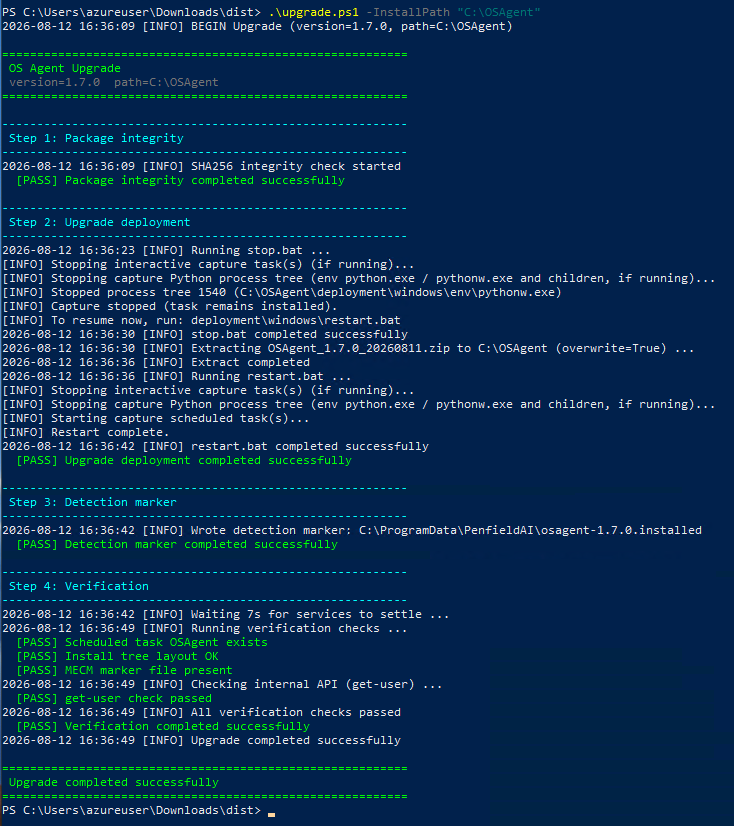
upgrade.ps1 verifies package integrity, stops capture, extracts the new zip over the existing install path, and restarts capture. It fails if there is no prior install — use install.ps1 for the first deployment.
Use reinstall.ps1 when the conda environment or scheduled task must be rebuilt (full uninstall path, optional backup rename of the old tree, then fresh install-agent.bat). Prefer upgrade.ps1 for normal version updates.
powershell.exe -ExecutionPolicy Bypass -File reinstall.ps1 -InstallPath "D:\OSAgent"
Uninstall the Windows Agent
Run:
powershell.exe -ExecutionPolicy Bypass -File uninstall.ps1 -InstallPath "D:\OSAgent"
The uninstall script runs uninstall-agent.bat and cleans up MECM detection markers. Confirm the OSAgent scheduled task is removed afterward.
Troubleshooting
Deploy times out or fails during install
- Ensure Maximum run time is at least 30 minutes.
- Review
C:\ProgramData\PenfieldAI\osagent-install.log. - Confirm enough free disk space under
-InstallPath.
Scheduled task is missing
- Confirm the install completed successfully in the log.
- Re-run
install.ps1orreinstall.ps1with the same-InstallPath. - Query the task:
schtasks /Query /TN "OSAgent" /FO LIST.
Capture does not start for a logged-on user
- Have the user log off and on, or reboot, so the AtLogOn task can run.
- Confirm the user is allowed by the capture group configuration shipped with the package.
- Check
output\logs\under the install path.
Upgrade fails
Run install.ps1 (or reinstall.ps1 for a full rebuild) when:
- The installation directory is missing.
- There was no successful prior install on that path.
SHA-256 verification fails
- Ensure
OSAgent_*.zipandOSAgent_*.zip.sha256were copied intact from the handoff package. - Do not rename the zip independently of the checksum file.
get-user check warns but deploy succeeded
The wrappers treat the local http://127.0.0.1:3000/api/v1/internal/get-user check as soft (retries, then WARN). Confirm the scheduled task and install layout first; then re-check the endpoint after capture has started for a user session.