Install Pathfinder using MECM
Microsoft Endpoint Configuration Manager (MECM/SCCM) can deploy Pathfinder to a collection of managed Windows computers. Each MECM client downloads the package from a distribution point and runs the selected PowerShell wrapper as LOCAL SYSTEM.
This method installs Pathfinder for all users of a targeted computer. Users do not need to enable Developer mode or load the extension manually.
Pathfinder force-installation requires a managed Windows device, such as a domain-joined, Microsoft Entra joined, or MDM-managed device. Chrome and Edge may block private force-installed extensions on unmanaged devices.
Prerequisites
Before deployment, confirm the following:
- The target computers are managed by MECM and belong to the intended device collection.
- At least one supported browser must be installed on each target computer. This can be Google Chrome or Microsoft Edge. Both browsers are supported, but installing both is not required.
- The customer-provided Pathfinder MECM package is available to the MECM administrator.
- The Pathfinder extension ID is permitted by the organization's browser Group Policy.
- PowerShell 5.1 or later is available on the target computers.
The Penfield OS Agent is not required to install or run Pathfinder. When both are deployed, privacy-mode Pathfinder can use the OS Agent's local get-user endpoint to obtain the current Windows user ID.
The install script skips a browser that is not installed. Installation fails only when neither Chrome nor Edge is present.
Package contents
Extract the Pathfinder MECM package into the MECM application source folder. The package has a flat layout:
install.ps1
upgrade.ps1
uninstall.ps1
common.ps1
pathfinder.crx
pathfinder.crx.sha256
pathfinder.meta.json
Keep these files together. The scripts use the package folder as their source unless -SourcePath is provided.
Create the MECM application
Create an MECM Application and add a Script Installer deployment type with these settings:
| Setting | Value |
|---|---|
| Installation behavior | Install for system |
| Logon requirement | Whether or not a user is logged on |
| Installation program visibility | Hidden |
| Administrative rights | Required |
| Install command | powershell.exe -ExecutionPolicy Bypass -File install.ps1 |
| Uninstall command | powershell.exe -ExecutionPolicy Bypass -File uninstall.ps1 |
| Upgrade command | powershell.exe -ExecutionPolicy Bypass -File upgrade.ps1 |
The default installation path is:
C:\Program Files\PenfieldAI\Pathfinder
To use another location, add -InstallPath to each command:
powershell.exe -ExecutionPolicy Bypass -File install.ps1 -InstallPath "D:\Apps\Pathfinder"
powershell.exe -ExecutionPolicy Bypass -File upgrade.ps1 -InstallPath "D:\Apps\Pathfinder"
powershell.exe -ExecutionPolicy Bypass -File uninstall.ps1 -InstallPath "D:\Apps\Pathfinder"
Use the same -InstallPath for installation, upgrade, and uninstallation.
Distribute and deploy
Test the package on one endpoint first. Confirm that Pathfinder installs and works before deploying it to a larger device collection.
- Distribute the application content to the required MECM distribution points.
- Create or select a device collection containing the computers that require Pathfinder.
- Deploy the application to that collection.
- Use a pilot collection before deploying broadly.
- Monitor deployment status in MECM.
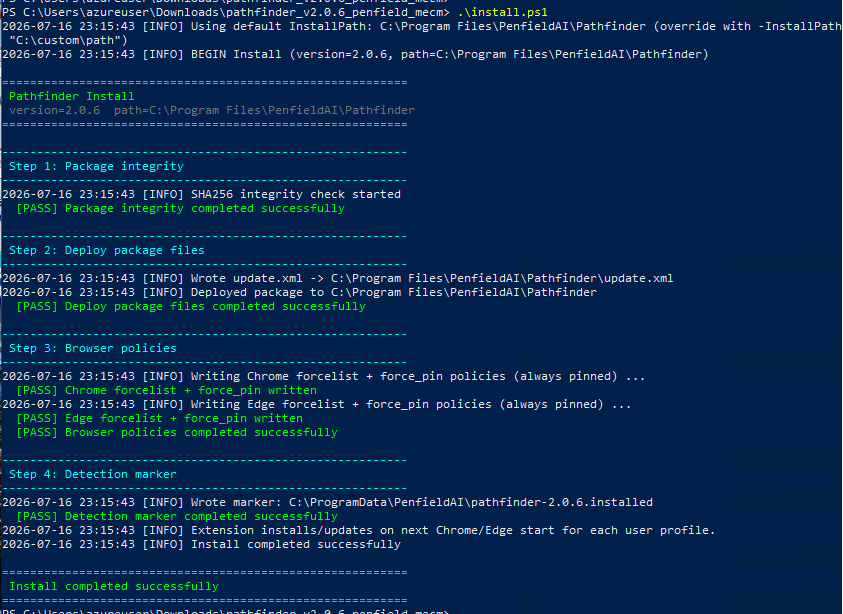
MECM copies the content to each computer's local client cache and runs install.ps1 as LOCAL SYSTEM.
What installation does
The install script:
- Verifies the SHA-256 hash of
pathfinder.crx. - Copies the CRX and metadata to the installation directory.
- Generates the local
update.xml. - Writes machine-level Chrome and Edge force-install policies.
- Force-pins Pathfinder in each installed browser.
- Writes the version-specific MECM detection marker.
Pathfinder appears for each user the next time Chrome or Edge starts. A full browser restart may be required.
Verify installation
On a target computer, verify:
- The payload exists under
C:\Program Files\PenfieldAI\Pathfinder. - The version marker exists under
C:\ProgramData\PenfieldAI. - Pathfinder appears and is pinned after restarting Chrome or Edge.
- Browser policy reports no errors:
- Chrome: open
chrome://policy - Edge: open
edge://policy
- Chrome: open
- The installation log reports success:
Get-Content "C:\ProgramData\PenfieldAI\pathfinder-install.log" -Tail 100
Upgrade Pathfinder
For a new Pathfinder release:
- Replace the MECM application source with the new package content.
- Update the MECM content on the distribution points.
- Run:
powershell.exe -ExecutionPolicy Bypass -File upgrade.ps1
upgrade.ps1 verifies that Pathfinder was previously installed, replaces the package files, regenerates update.xml, and writes the new detection marker. Existing browser policies are left unchanged.
Use install.ps1 for the initial deployment. upgrade.ps1 fails when the installation directory or browser force-install policy is missing.
Uninstall Pathfinder
Run:
powershell.exe -ExecutionPolicy Bypass -File uninstall.ps1
The uninstall script removes the Pathfinder Chrome and Edge policies, installation files, and detection markers. Users may need to restart their browsers before the extension disappears.
Troubleshooting
Pathfinder does not appear
- Restart Chrome or Edge completely.
- Confirm the computer is managed.
- Confirm the browser is installed at the machine level.
- In Google Chrome, open
chrome://policy. - In Microsoft Edge, open
edge://policy. - Confirm the extension ID is allowed by the organization's browser policy.
- Review
C:\ProgramData\PenfieldAI\pathfinder-install.log.
Pathfinder appears but is not pinned
Reload browser policies and check ExtensionSettings:
- Chrome uses
toolbar_pin: force_pinned. - Edge uses
toolbar_state: force_shown.
Any schema validation warning in the browser policy page must be resolved before pinning works.
Upgrade fails
Run install.ps1 instead when:
- The installation directory is missing.
update.xmlis missing.- No Pathfinder force-install policy exists for Chrome or Edge.